
How to Block Access to a User in Microsoft Admin
Overview
Blocking a user's access in Microsoft 365 prevents them from signing in to any Microsoft 365 service — including Outlook, Teams, SharePoint, and OneDrive — while keeping their data, mailbox, and license assignments fully intact. This is the recommended first step when an employee is terminated, when an account is suspected to be compromised, or when access needs to be temporarily suspended.
AccountEnabled property to false in Entra ID. It does not delete the user, revoke licenses, or remove data. All content remains accessible to admins.| Method | Best For | Requires |
|---|---|---|
| Microsoft 365 Admin Center | Single users, quick blocking | Admin Role |
| PowerShell (Graph) | Bulk users, automation | PS + Graph |
| Exchange Admin Center | Email-only block | Exchange Admin |
Method 1: Microsoft 365 Admin Centre (UI)
This is the fastest way to block a single user. No special tools are required — just a browser and an admin account.
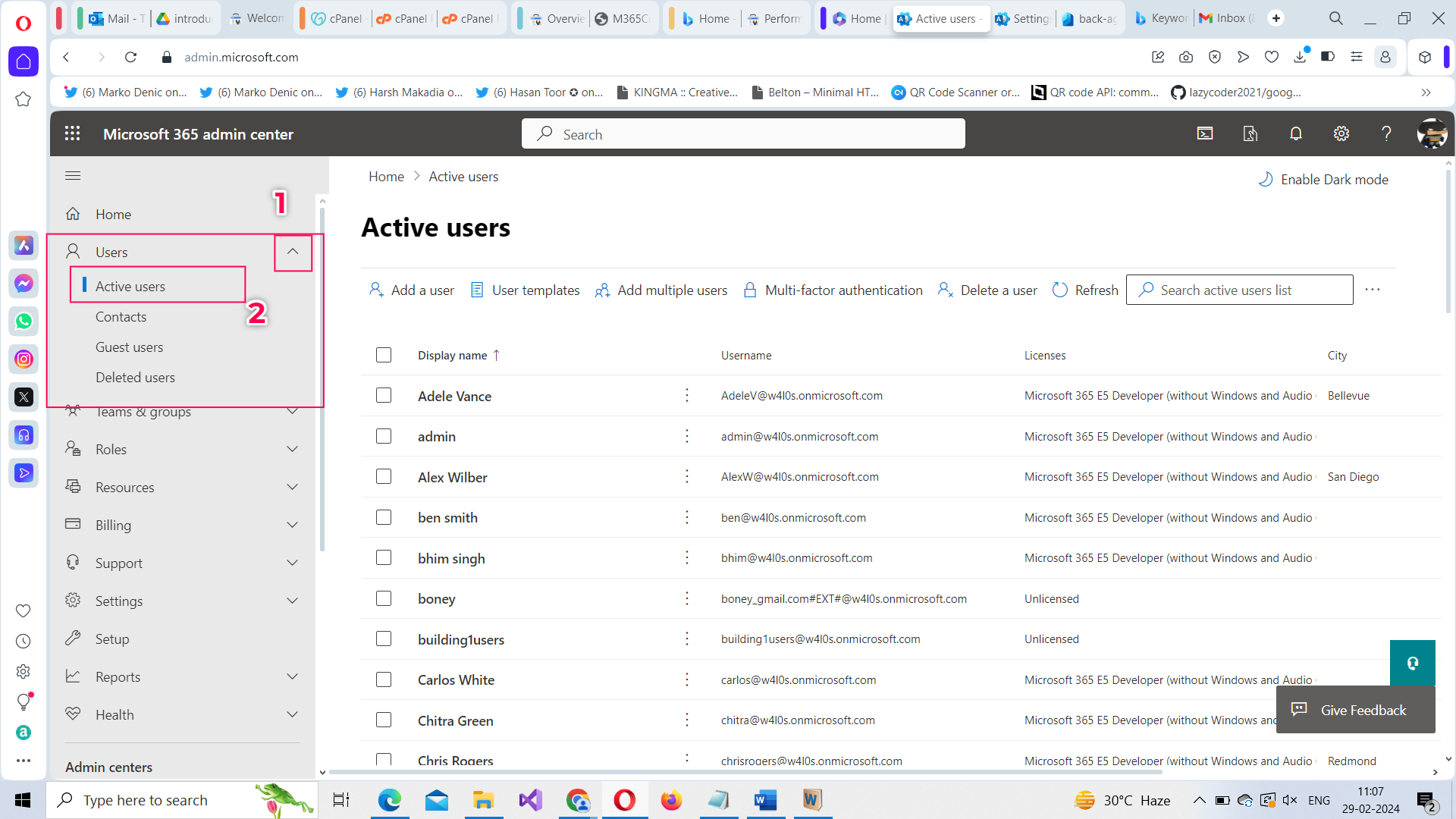
- Go to the Microsoft 365 Admin Centre - Navigate to admin.microsoft.com and sign in with your administrator credentials.
- Open Active Users - In the left navigation panel, select - Users→Active users to open the users list.
- Search for and select the user - Use the search bar to find the user by name or email. Click their name to open their details pane.
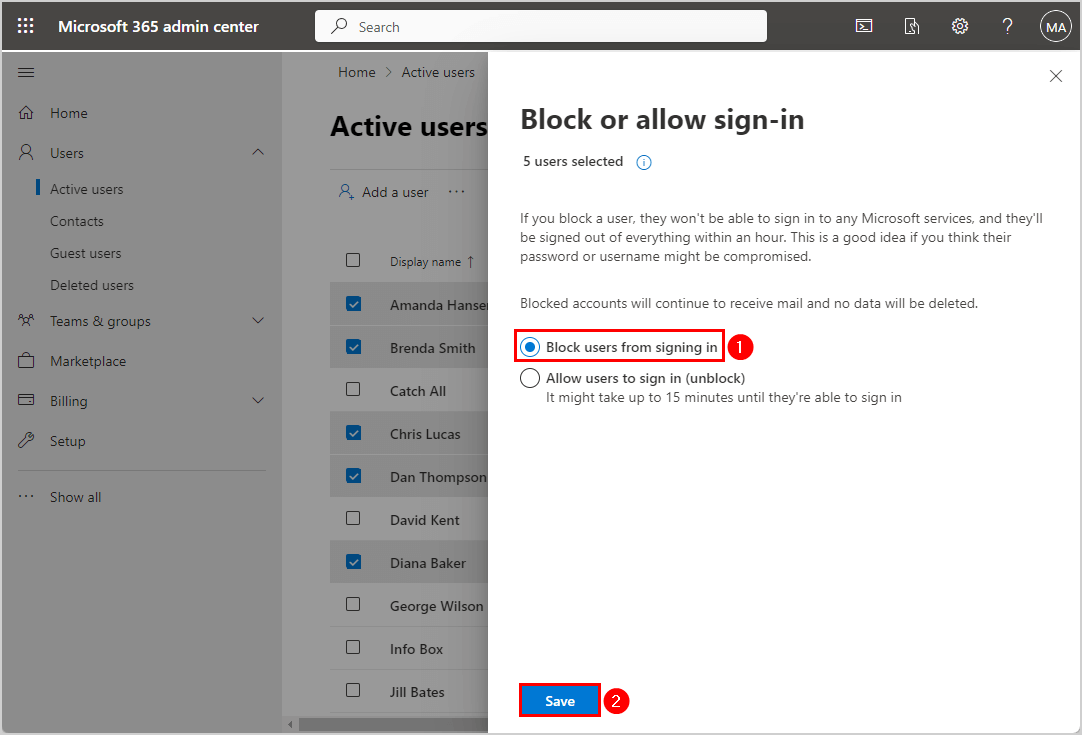
- Click "Block sign-in" In the user details pane, select the "Block sign-in" option. This is usually visible in the quick-action bar at the top of the pane.
- Enable the block and save - On the "Block sign-in" panel, toggle "Block this user from signing in" to: On, then click: Save changes.
Method 2: Block via PowerShell (Microsoft Graph)
PowerShell is the recommended approach when you need to block multiple users at once or automate offboarding workflows. It uses the Microsoft Graph PowerShell SDK.
Prerequisites
Ensure you have the Microsoft Graph PowerShell module installed. Run the following in an elevated PowerShell window:
# Install the Microsoft Graph module (run once)
Install-Module -Name Microsoft.Graph -Scope CurrentUser
Block a Single User
# Connect to Microsoft Graph with User.ReadWrite.All permission
Connect-MgGraph -Scopes "User.ReadWrite.All"

# Block a single user by UPN
Update-MgUser -UserId "jane.doe@yourdomain.com" -AccountEnabled:$False

# Force immediate sign-out from all sessions
Revoke-MgUserSignInSession -UserId "jane.doe@yourdomain.com"
Block Multiple Users (Bulk)
# List of users to block (one UPN per line in users.txt)
$users = Get-Content "C:\Users\Admin\users.txt"

# Loop through and block each user
foreach ($user in $users) {
    Update-MgUser -UserId $user -AccountEnabled:$False
    Revoke-MgUserSignInSession -UserId $user
    Write-Host "Blocked: $user" -ForegroundColor Green
}
Method 3: Block Email Access Only (Exchange Admin Centre)
If you want to block email access specifically — without disabling the full Microsoft 365 account — you can do this from the Exchange Admin Centre.
- Go to the Exchange Admin Centre: Navigate to admin.exchange.microsoft.com.
- Open Mailboxes: Select, "Recipients→Mailboxes" in the left navigation.
- Select the user's mailbox: Click the user's name to open their mailbox properties.
- Manage email app settings: Under "Email apps & mobile devices, click "Manage email apps settings".
- Disable all app toggles: Turn "Off" the slider for all options: Outlook on the web, Outlook desktop (MAPI), Mobile (Exchange ActiveSync), POP, IMAP, and SMTP. Click Save.
Force Sign Out of All Sessions
Blocking sign-in prevents new logins, but existing sessions may stay active up to 60 minutes. To revoke them immediately, use the "Sign out of all sessions" option.
Via Admin Centre
- Open the user's details pane: Go to — Users → Active users, and click on the user's name.
- Click the Account tab: Navigate to the — Account tab within the user details pane.
- Select "Sign out of all sessions: "Click the button and confirm. The user will be prompted to sign in again within the hour.
Via PowerShell
# Revoke all active sessions immediately
$RevokeStatus = Revoke-MgUserSignInSession -UserId "jane.doe@yourdomain.com"
Write-Host "Sign-out status: $($RevokeStatus.Value)"
Verify the Block is Active
Always confirm the block was applied successfully, especially for offboarding scenarios.
Via Admin Centre
In the Active Users list, blocked accounts display a blocked icon or "Blocked" label next to the user's name. You can also open the user details and check the Block sign-in toggle status.
Via PowerShell
# Verify the user's AccountEnabled status
Get-MgUser -UserId "jane.doe@yourdomain.com" -Property "DisplayName,AccountEnabled" |
  Select-Object DisplayName, AccountEnabled

# Expected output:
# DisplayName     AccountEnabled
# -----------     --------------
# Jane Doe        False
Unblocking a User
Unblocking restores full access instantly — credentials, licenses, and data were never removed.
Via Admin CeCentre
- Find the blocked user: Go to Users → Active users. Filter by “Blocked” if needed.
- Open Block sign-in panel: Select the user and click Block sign-in.
- Toggle off and save: Switch the toggle to Off and click Save changes. The user regains access immediately.
Via PowerShell
# Re-enable user account
Update-MgUser -UserId "jane.doe@yourdomain.com" -AccountEnabled:$TrueRequired Admin Permissions
Use the role with the fewest permissions necessary. Avoid Global Administrator unless absolutely required.
| Task | Minimum Required Role |
|---|---|
| Block/unblock user sign-in | User Administrator |
| Revoke sign-in sessions | User Administrator |
| Block email app access | Exchange Administrator |
| PowerShell (Graph) block | User.ReadWrite.All (App Permission) |
| View blocked user status | Global Reader |