How to Enable/Disable a User License
Step 1: Open LEAP Desktop.
Step 2: Login to your LEAP Account (Ensure you are using a user with full Administrator Privileges).
Step 3: Once logged in, Select Menu from the top left.
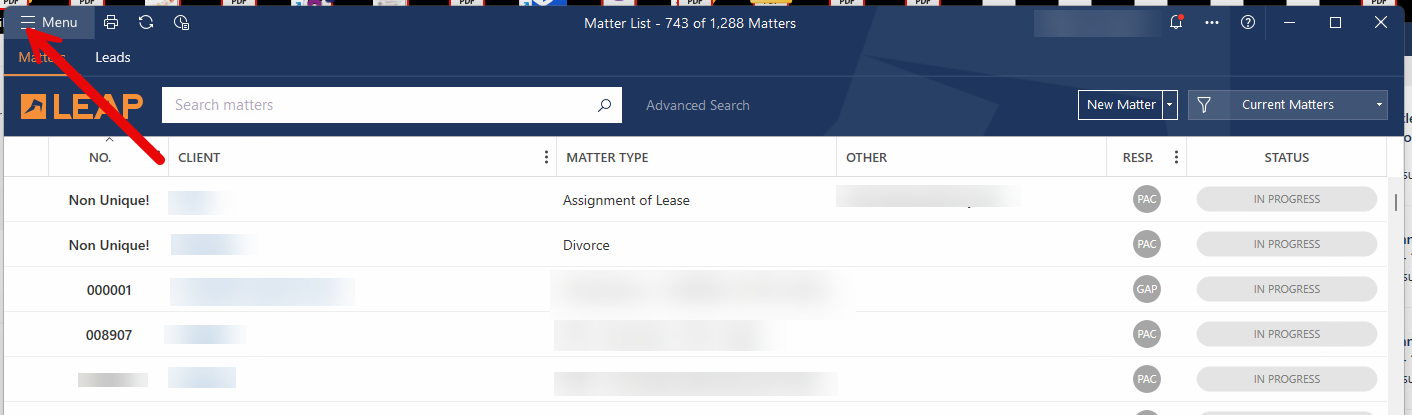
Step 4: Select Application Settings
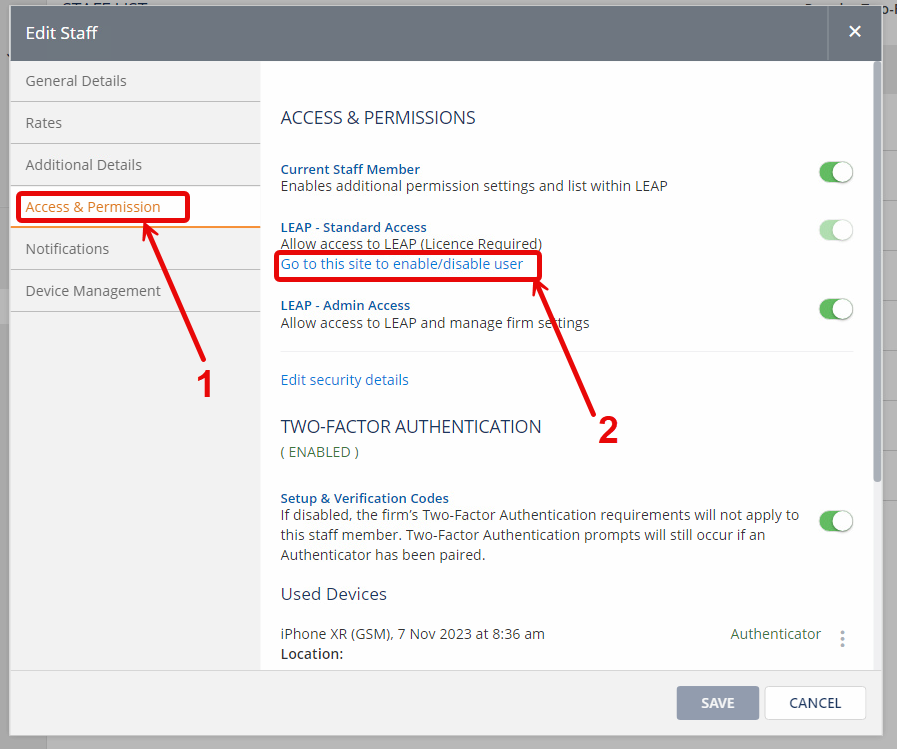
Step 5: Next, select Members Option and select any staff member.
Step 6: In the Edit Staff dialogue box, select Access Permissions > Go to this site to enable/disable user.
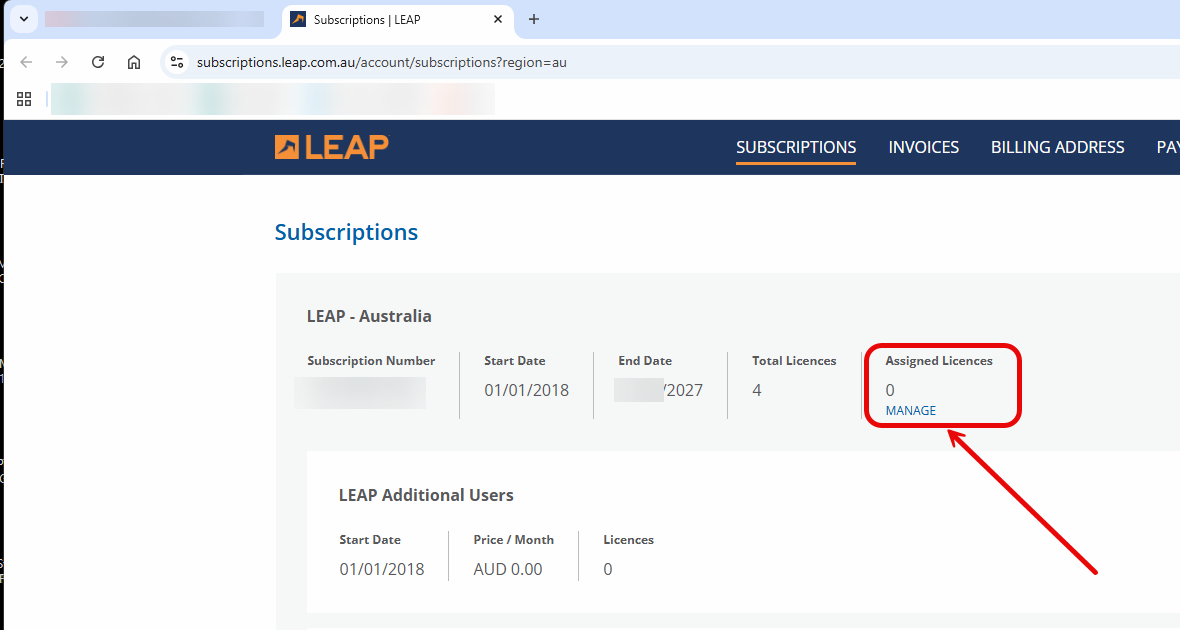
Step 7: A new webpage will open where you need to click on the word Manage.
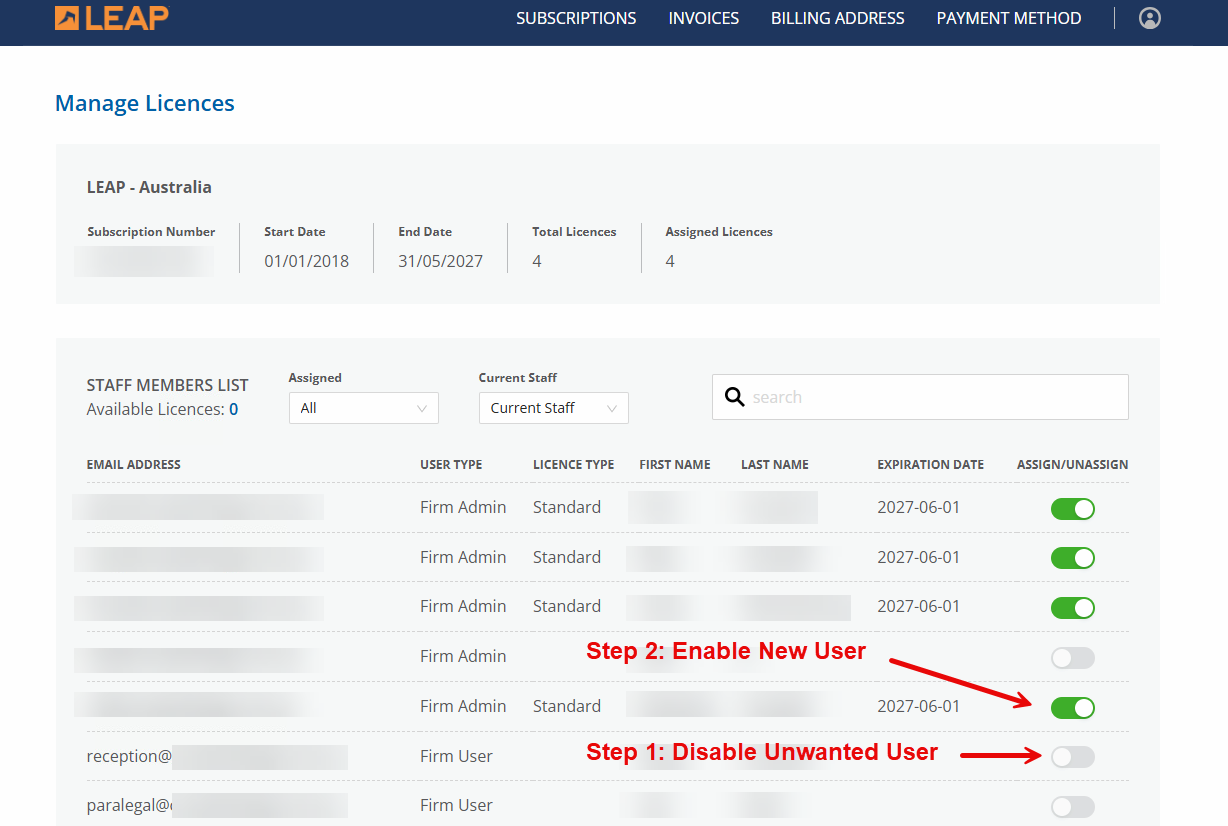
Step 8: Disable the user you no longer require.
Step 9: Enable the new user you wish to activate.